Open application\libraries\MY_Email.php and change configuration.
Check out details here: https://ellislab.com/codeigniter/user-guide/libraries/email.html
Sometimes you need to configure server to enable outgoing SMTP, WHM example:


Open application\libraries\MY_Email.php and change configuration.
Check out details here: https://ellislab.com/codeigniter/user-guide/libraries/email.html
Sometimes you need to configure server to enable outgoing SMTP, WHM example:
Please login to read this.
County and city don’t have special tables, saved in property_value,
Please login to read this.
Usually images should be uploaded via gallery option in dashboard, if you really need to add image inside content then:
You should download wanted icons and upload it to image service
EDIT: postimg service is closed so use alternative like:
Some services like: https://imgur.com/ or https://imgbox.com/
1. step
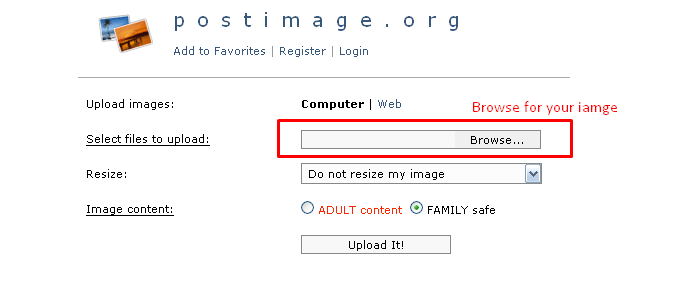
2. step

3. step

You must purchase additional license for each real domain (not for localhost).
Num images limit can be now limited with packages module: http://iwinter.com.hr/support/?p=4635
This can’t be limited by default, but I have simple customization to limit on listing (show only first 5 images):
Please login to read this.
Example:
You will get all updates for free/no cost via CodeCanyon item page.
In script version >= 1.5.4 color can be selected in admin->settings->design template
Logout is required after that
For older script versions:
If you want to specify color, in ‘application/config/cms_config.php’ add line
$config['color'] = 'red';
If you need customization of specific color theme, css file is:
templates\bootstrap2-responsive\assets\css\styles_red.css
you can also add your own color like:
templates\bootstrap2-responsive\assets\css\styles_mycolor.css
Then you should also create marker folder, example:
/assets/img/markers/mycolor/
can be also empty, then default markers will be used
Live demo is available here: http://real-estate.iwinter.com.hr/index.php/frontend/login/en
Agent can be registered here (not public visible link): http://real-estate.iwinter.com.hr/index.php/admin/user/register
AGENT account is Backend agent, because using Backend part of design and security check.
USER account is also Frontend agent, because using Frontend part of design and security check.
AGENT username: agent
AGENT password: agent
USER username: user
USER password: user
Main differences:
AGENT is person of trust from company, login to backend, they don’t need wait to approve submission, and can set all options/fields of property, for example also badget (new, hot, top etc…)
USER is person not of trust, login only to frontend, need wait to approve submission from admin, and can’t set all propertiy options/fields, for example badget is not available.
Agents outside your company also should have that rule.
This is not suggested, but if you really want, in cms_config.php add:
$config['dropdown_register_enabled'] = FALSE;
First of all please make a backup (zip all files and database export in phpMyAdmin)!
If you don’t want to risk or not familiar with tools like phpMyAdmin, I can also do this for additional price, just send me support ticket.
Please check out you script version, open file index.php and there you should find something like this:
define('APP_VERSION_REAL_ESTATE', '1.5.2 beta');
Update instructions from version to version is available on item page, bottom:
http://codecanyon.net/item/real-estate-agency-portal/6539169
Usually it works this way:
Extract all files except ”/files” folder and ”/application/config” folder and update database by running updater script: index.php/updater
If you skipped updates then you should run updater few times to update database.
If you want to do it yourself:
Extract all files except:
If you configure something additionaly, please then reconfigure this again in new files…
And update database, in phpmyadmin select database and import, for example if your version is 1.4.4 then you should update database by order starting from next version sql file (All files are available when you download new version from codecanyon):
update-1.4.5.sql

update-1.4.6.sql

update-1.4.7.sql

...

DON't RUN update-1.5.3.sql, there is different update instructions (easier), check out on item description page
There can be additional configuration betwen version, please check item description page bottom for details about update for each version…
If you receive any SQL error please don’t run same script again or skip version because you can have troubles in future. Error can be because of your new custom fields and something like that, then you should remove this fields…
In error situation, please send me your cpanel login details to check out what happens…
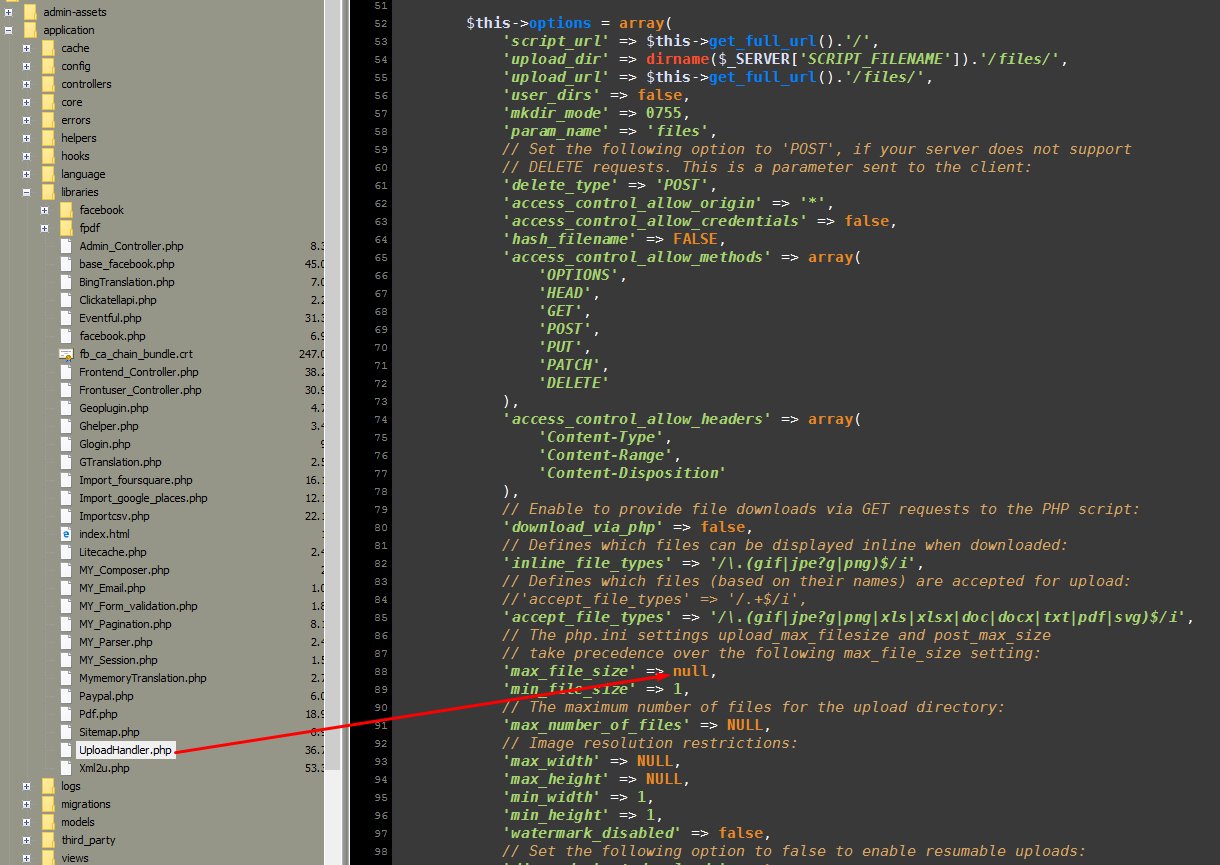
In file ‘application\libraries\UploadHandler.php’, line around 106, change from:
'watermark' => false
to
'watermark' => true
Watermark / Stamp image file is available: admin-assets\img\stamp.png
Watermark / Stamp will be added to new uploaded images.
bootstrap2-responsive is just template example so if you using other this may be selio, local or other template file but urls are usualy same
Just replace following images:
NOTE: After change images don’t forget to refresh multiple times and clear your browser cache to see changes!
For facebook share image, you need to wait few days that facebook cache changed images or via facebook debugger speed up the process: https://developers.facebook.com/tools/debug/
On admin dashboard part there is small logo:
admin-assets/img/custom/logo-system-mini.png
And text right of logo:
In administration, there is also text with logo, defined in file application\views\admin\_layout_main.php, line 14
Admin window title:
Available in language files: Admin->Settings->Languages->Translate wanted language->backend_base_lang.php->Change “Real Estate Point”
Favicon icon:
admin-assets/img/favicon/favicon.png
NOTE: After change images don’t forget to refresh multiple times and clear your browser cache to see changes!
For more details please read article: http://iwinter.com.hr/support/?p=71
Change this image: admin-assets/img/stamp.png
In new script version >= 1.5.9. can be done even via admin->settings
File for HTML footer logo iwinter: templates\realsite\widgets\footer_allreserved.php
Login to admin->Settings->System settings->Change ‘Zoom index’ value.
What is zoom index?
zoom index is same as zoom + and – on google maps:
https://developers.google.com/maps/documentation/javascript/controls
Higher zoom index means higher zoom level
Default zoom index is 16 in our script
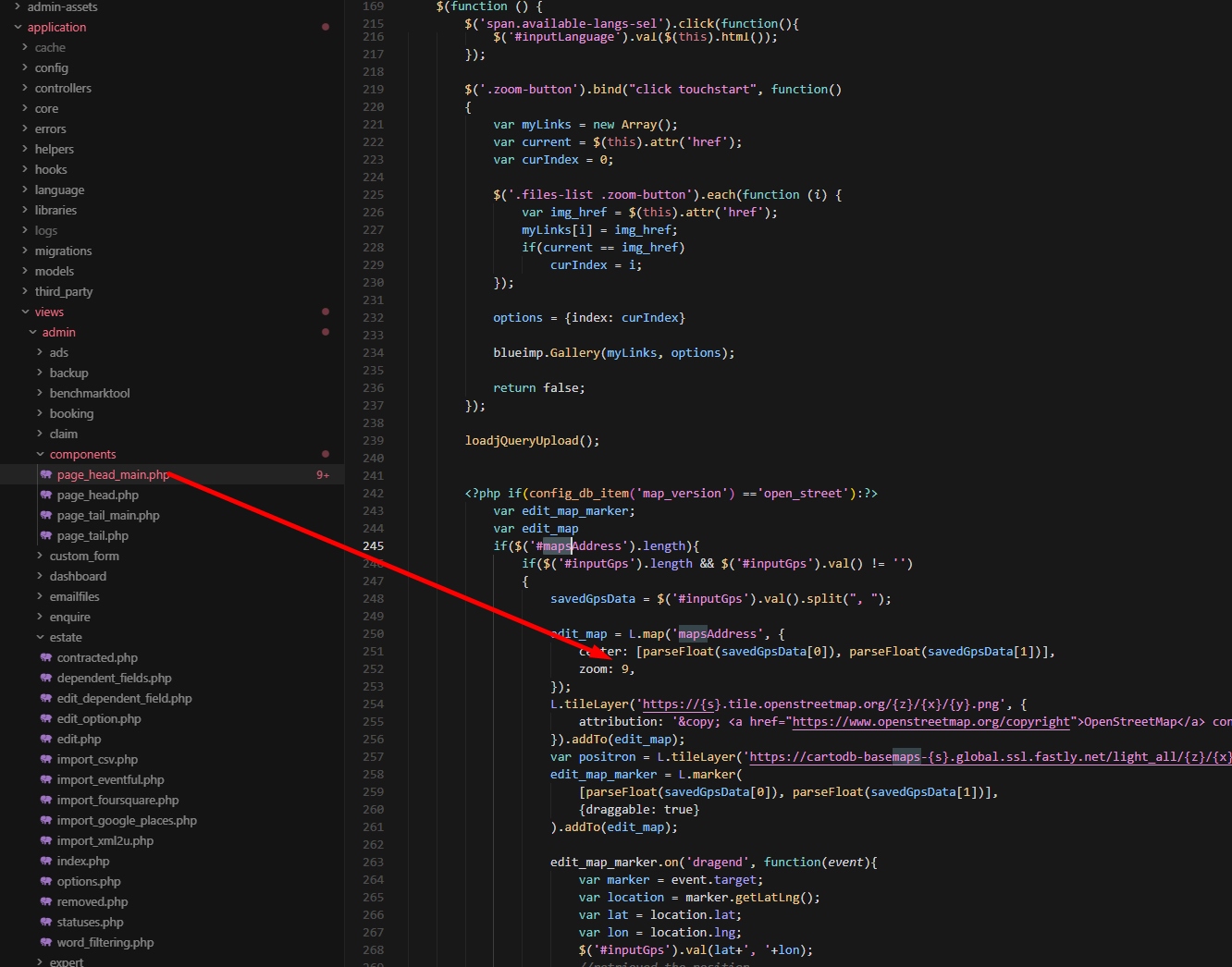
To change zoom in dashboard first page:

Guide for edit property and other pages:
First you should buy another hosting package for your website, my suggestion where everything is tested and works nice:


Script using advanced hashing methods to protect passwords saved in database, if your server doesn’t support same as localhost, then login will not work on any account.
In that case you should register new account, and manually define it as admin to login as admin, for this you should:
Login to your Cpanel->PHPMyAdmin->Open database table users and change type of added user to ADMIN:

Login to administration->Real Estates->Fields->Edit ‘Purpose’->On all langauges remove wanted values, for example “sale” and “rent and sale” but one should stay or you can expect issues!
If you want just hide it, this can be done via css file templates\bootstrap2-responsive\assets\css\styles.css, add:
ul#search_option_4 li{
    display:none;
}

ul#search_option_4 li.list-property-button
{
    display:inline;
}
If you want to hide “All” in standard real estate bootstrap2-responsive template:

Add
$config['listing_uri'] = 'listing';
to cms_config.php
If you want something else like ‘property’->’firma’, then you need additional:
In ‘application\config\routes.php’
After:
$route['listing/(:num)/(:any)/(:any)'] = "property/$1/$2/$3";
$route['listing/(:num)/(:any)'] = "property/$1/$2";
Add also:
$route['firma/(:num)/(:any)/(:any)'] = "property/$1/$2/$3";
$route['firma/(:num)/(:any)'] = "property/$1/$2";
Probably when you translating badget, you translate also this field values, but this field values is related to filenames of badget icons so you should also add new badget icon image or leave english version.
To leave english version:
Login to admin->Estates->Fields or Options->Edit badget->Change values of each language to: empty,new,sold,action
To add new version for your language:
Add option value for option ‘icon’ for example ‘hot’ (please use only english lowercase characters without spaces/dots etc. for this value) to all languages and add image in badgets folder ‘templates\bootstrap2-responsive\assets\img\badgets’, hot.png
To add icon for specific option like amenities etc.:
Or for icons ‘templates\bootstrap2-responsive\assets\img\icons\option_id’ folder, for example 23.png where 23 is option_id
Google map marker icons can be found in: ‘templates\bootstrap2-responsive\assets\img\markers’
PDF file with screenshots: http://map-kiosk.com/codecanyon/translate_instructions.pdf
Admin->Settings->Languages->Translate files for wanted language->frontend_template_lang.php->translate missing fields
Example video: http://geniuscript.com/support-videos/change-text.mp4
If some words are missing, you can add it in file:
templates\{template_name}\language\english\frontend_template_lang.php
* {template_name} is your template, usually bootstrap2-responsive, realocation, …
Also can be translated manually via file:
templates\{template_name}\language\{wanted_language}\frontend_template_lang.php
Admin->Settings->Languages->Translate files->Translate min. all fields in backend_base_lang.php
*Hint: You can also use auto translation feature (button on top) using Google or MyMemory API
Also can be translated manually via file:
application\language\{wanted_language}\backend_base_lang.php
On admin login page, we don’t know which language to show, because of that it showing default defined in config file “english”, if you want to change this just change langauge in:
application\config\config.php
Looks like you didn’t translate pages to this language. Please change your language in profile to english, Logout->Login again, Edit all pages and translate to your language.
Looks like your server don’t give permission to PHP script for write/delete files on server. Solution is to chmod 755 in following files/folders:
/templates/{your-template}/assets/cache and all files inside
/files/thumbnail and all files inside
/files/captcha and all files inside
/files and all files inside
/application/config/cms_config.php
/application/config/production/database.php
/application/language and all files/folders inside
/system/language and all files/folders inside
/templates/bootstrap2-responsive/language and all files/folders inside
/templates/bootstrap2/language and all files/folders inside
/application/logs and all files/folders inside
/sitemap.xml
If doesn’t help, you can try with chmod 777