Open application\controllers\frontend.php, search for option_chlimit_ and then change: for example red number (on more places):
$estate['option_chlimit_'.$key1] = character_limiter(strip_tags($row1), 80);

Open application\controllers\frontend.php, search for option_chlimit_ and then change: for example red number (on more places):
$estate['option_chlimit_'.$key1] = character_limiter(strip_tags($row1), 80);
Add field in administration and after that edit templates\bootstrap2-responsive\property.php, lines around 328-340 add red customization for outdoor amenities example:
<?php if(isset($category_options_52) && $category_options_count_52>0): ?>
<h2>{options_name_52}</h2>
<ul class="amenities">
{category_options_52}
{is_checkbox}
<li>
<img src="assets/img/checkbox_{option_value}.png" alt="{option_value}" class="check" /> {option_name} {icon}
</li>
{/is_checkbox}
{is_dropdown}
<li>
{option_name}: {option_value}
</li>
{/is_dropdown}
{/category_options_52}
</ul>
<br style="clear: both;" />
<?php endif; ?>
Open application\controllers\frontend.php, in method editproperty() , line around 1257, before:
$insert_id = $this->estate_m->save($data, $id);
add
$data['is_activated'] = 1;
Admin->Settings->Languages->Translate files->Translate min. backend_base_lang.php
After that you should change language in admin profile edit, and: Logout->Login again
For WordPress:
so user can change language in dashboard this way and then logout, login again:

video example: https://geniuscript.com/translate_loco.mp4
Here is instructions to send email: http://www.codeigniter.com/user_guide/libraries/email.html
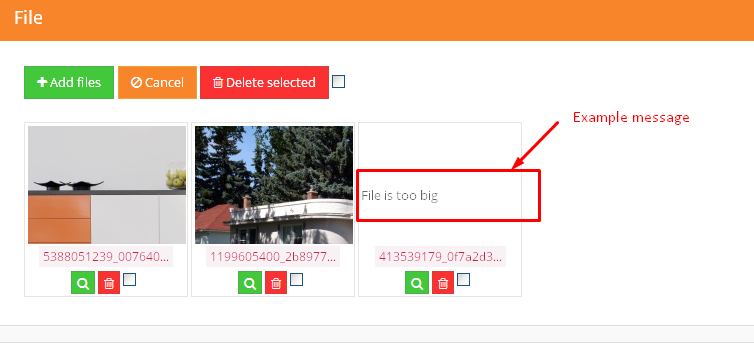
Edit file application\libraries\UploadHandler.php, line 86:
‘max_file_size’ => null,
You will receive warning like this:
Please follow guide from template, like:
http://geniuscript.com/wbooking/user_guide_theme/#!/custom_search_form
Depends on which template file you using, for example: templates\bootstrap2-responsive\components\search-filter.php line around 23, add additional input… (You should not copy paste from this website, but from your file and modify, because of possible “quote” formatting issues or changes in your script version)
Example to find FROM some number:
<input id="search_option_20_from" type="text" class="span2" placeholder="From bedrooms" />
Example to find TO some number:
<input id="search_option_20_to" type="text" class="span2" placeholder="To bedrooms" />
Example to find EQUAL, same number:
<input id="search_option_20" type="text" class="span2" placeholder="To bedrooms" />
For this situation example you also need to change field type to short input in Administration…
Also very helpfully for customization is example search form, so check out code in this and other search form files: search-filter.php
For new inovative search form on right side:
Also templates\bootstrap2-responsive\components\search-filter.php and additional templates\bootstrap2-responsive\page_homepage-filters.php, lines 153-209, same field on 2 places, one time in above mentioned files.
NOTICE: Don’t removed top primary searchbar, this custom search can’t work without primary top, so you should restore top search. If you want to hide it you can hide via css (style=”display:none;”), but not remove completely from HTML!
For >=v1.5.4 If you want that textfield become numeric searchable you should add in database “property_lang” table, add
field_136_int in type int. Then resave all properties. 136 is example of field ID.
For >=v1.5.6 If you want that textfield become numeric searchable Admin->Real estates->Fields->Edit wanted and click on “Enable numeric filtering”:

After that you should resave all properties
For >=v1.5.7 right search form is moved to widget:
templates\bootstrap2-responsive\widgets\right_customfilter.php
You can remove it, but must be sure if you translate everything on website to your other language before this.
If yes, then:
1. Just for security backup everything
2. Open phpMyAdmin and run SQL:
UPDATE `language` SET is_locked=0 WHERE 1
3. Now you can remove language from admin interface Admin->Settings->languages->Remove wanted language
You can for example edit templates\bootstrap2-responsive\property.php
And infos that need to be hidden for not-registered users, hide with something like this:
<?php if(count($not_logged)==0): ?>
//Your secret info here
<?php endif; ?>
If this is what you want, you owe me a beer 
Admin->Pages->Add Page-> In keywords field you can add any link, for example: http://www.google.com
If you need quotes in URL, for example when calling api methods with json, then you should replace quote with %22, example on image:

NOTE: in script v1.5.9 and above this replace is not required anymore.
For classifieds script you can take link as on this example:
search={"v_search_option_79":"example value"}


If you will add complete link including http://www.geniuscript.com/class…; then other page will be opened depend on link, so be careful.
You should enter your facebook “appId” and “secret key” into:
application\config\facebook.php

You can add new facebook app here to get this parameters: https://developers.facebook.com/apps


For new strict mode, use such address example:

Also your Facebook app should be online/activated:

Don’t forget to check your API version:

(Facebook API >=2.4 Supported from script v1.5.5) Min server requirements :
Can be configured in facebook.php you must add/change to:
$config['facebook_api_version'] = '2.4';
(Common error) If you have api version 2.5 or any above, enter 2.4 in configuration and nothing else!
Facebook API <= 2.3 Min server requirements:
Can be configured in facebook.php you must add/change to:
$config['facebook_api_version'] = '';
1. Your facebook email is already registered in script
2. You try to login with wrong facebook API configured, then you should remove app permissions from your personal facebook account and login again or try with another account.

Default font can be changed with css file customization, templates\bootstrap2-responsive\assets\css\styles.css, line around 257 or find code and change:
font-family: "Open Sans","Arial",sans-serif;
Default css files for template:
\templates\bootstrap4\assets\css\winter-flat.css
\templates\bootstrap4\assets\css\custom.css
For change font size of menu, add into \templates\bootstrap4\assets\css\custom.css
.menu .nav-link {
    font-size: 12px;
}
Similar way also for other themes
In version >=1.5.4:
Admin->Pages->Edit->change header template
In versions <=1.5.3:
There is 2 version of homepage templates, “homepage” and “homepage-slideshow”, you can select wanted template.
You want to replace map with slider on all pages?
Can be done with wanted template file customizations, just replace part of code that showing map, with part of code that showing slider, for example on classic page_page.php located in folder: templates\bootstrap2-responsive
Replace:
<input id="pac-input" class="controls" type="text" placeholder="{lang_Search}" />
<div class="wrap-map" id="wrap-map">
</div>
With this code:
<div class="wrap-map">
<div id="myCarousel" class="carousel slide">
<ol class="carousel-indicators">
{slideshow_images}
<li data-target="#myCarousel" data-slide-to="{num}" class="{first_active}"></li>
{/slideshow_images}
</ol>
<!-- Carousel items -->
<div class="carousel-inner">
{slideshow_images}
<div class="item {first_active}">
<img alt="" src="{url}" />
</div>
{/slideshow_images}
</div>
<!-- Carousel nav -->
<a class="carousel-control left" href="#myCarousel" data-slide="prev">‹</a>
<a class="carousel-control right" href="#myCarousel" data-slide="next">›</a>
</div>
</div>
You can also replace map with other type of content, if you need css customization, can be done in file: templates\bootstrap2-responsive\assets\css\styles.css
If you want to pause carousel then you can use something like this:
<script language="javascript">
$(document).ready(function(){
    $("#myCarousel").carousel('pause');
});
</script>
How to submit your page on google?
Most simple way is to submit your generated sitemap.xml to google webmaster tools:
https://www.google.com/webmasters/tools
Generated URL example: http://real-estate.iwinter.com.hr/sitemap.xml
Regarding removing index.php:
First of all this doesn’t work on standard localhost, only on real servers!
If you want best seo principles like just content title in URL, without “index.php” in URI, you need to:
Rename “seo.htaccess” file to “.htaccess”.
.htaccess should be placed into your public_html, so root of your web installation, example:

In “application/config/config.php” change:
$config[‘index_page’] = ‘index.php';
to
$config[‘index_page’] = ”;
Some hosting providers have many restrictions with *.htaccess files, there is more versions so you can try other versions like seo-v2.htaccess etc…
Regarding hosting providers, this customization is tested on:

Don’t forget to check out extra seo module: http://iwinter.com.hr/support/?p=4662
Or this hint: http://iwinter.com.hr/support/?p=160
if you have problem with hostname, in standard hosting providers this should be localhost, but sometimes not and depends on hosting provider. Please ask your hosting provider which MySQL database hostname and port you should use for database access.
You can also test your database details with this basic connection code to be sure that it’s right:
<?php
$servername = "localhost";
$username = "your-username";
$password = "your-password";
$database_name = "your-database-name";

$conn = new mysqli($servername, $username, $password, $database_name);
if ($conn->connect_error) {
die("Connection failed: " . $conn->connect_error);
}
echo "Connected successfully";
?>
Source: http://www.w3schools.com/php/php_mysql_connect.asp
If your database connection works and you still have issue with script connection then please provide me your cpanel login details, database details and website link for test, via email: sanljiljan@geniuscript.com
If you want to change template, then file:
application\errors\error_404.php
1. Admin->Real estates->Fields->Edit area->Change from Type dropdown to short input
2. Additional you need change wanted template files, for example templates\bootstrap2-responsive\components\search.php, line 15-17:
<select id="search_option_3" class="span3 selectpicker nomargin" placeholder="{options_name_3}">
{options_values_3}
</select>
Replace with:
<input id="search_option_3_from" type="text" class="span3" placeholder="{lang_From} ({options_prefix_3}{options_suffix_3})" />
<input id="search_option_3_to" type="text" class="span3" placeholder="{lang_To} ({options_prefix_3}{options_suffix_3})" />
Of course, you probably will need also small css fixes to show it nicely.
Developers basic skills needed for this, if you are nor familiar check guide to ask for customization (cost additional): http://iwinter.com.hr/support/?page_id=1870
You need to modify file SW_Win_Classified\views\frontend\resultspage.php in your theme, usual location for nexos theme:
wp-content\themes\nexos\SW_Win_Classified\views\frontend\resultspage.php
Example to add address:
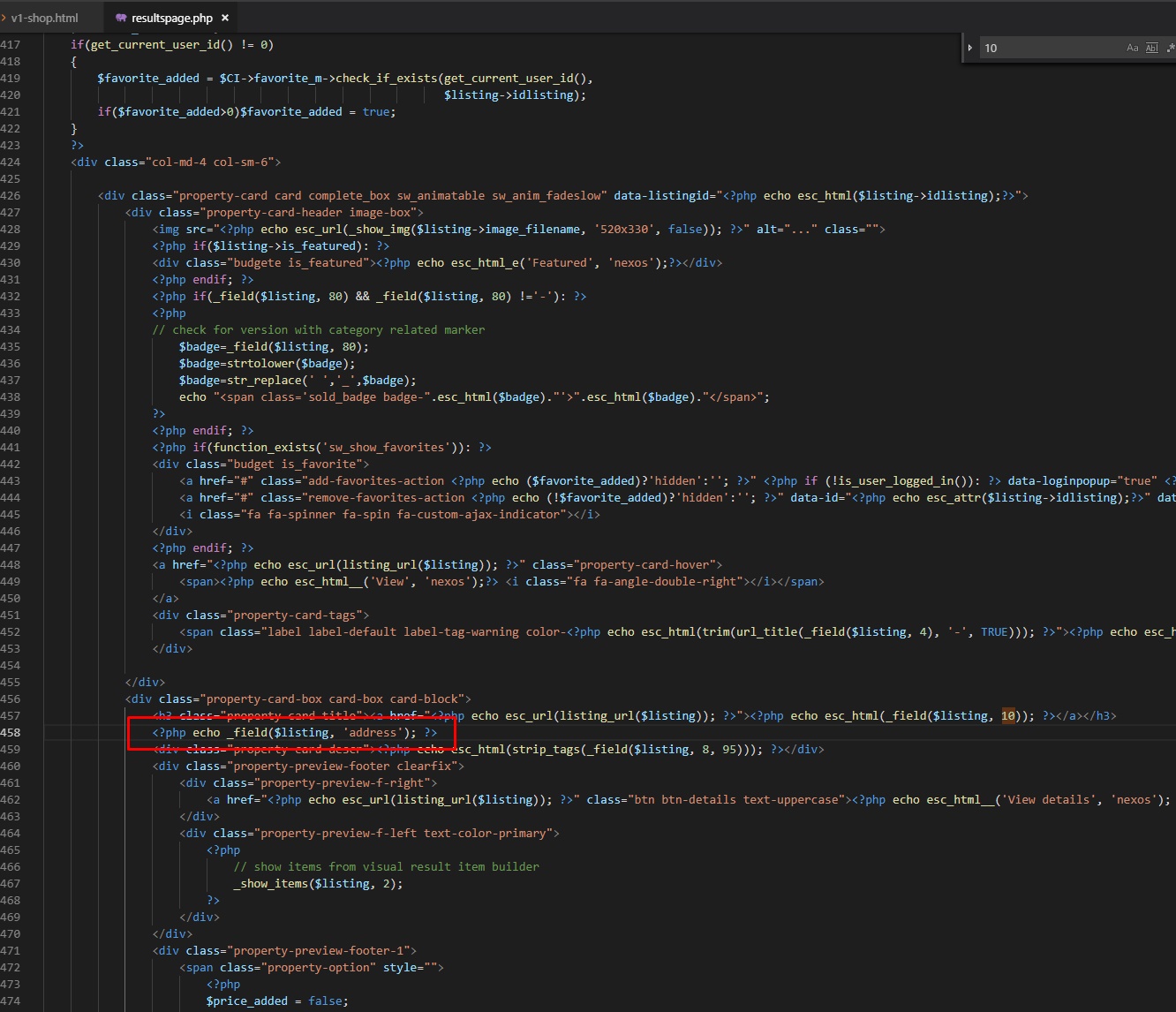
results:

Example for location or very custom fields:
Basically copied from wp-content\themes\nexos\SW_Win_Classified\views\frontend\listingpreview.php

example results:

For grid version you can edit content in: templates\{your_template}\widgets\results_item.php
And for list version templates\{your_template}\results.php
General HTML customization guide: http://iwinter.com.hr/support/?p=2076
For initial results listing, you should edit template file selected when editing pagem for example templates\bootstrap2-responsive\page_homepage.php, begining from line around 122, {results} … {/results}:
For example if you want to change bathrooms with badrooms, replace:
<p class="bottom-border">{options_name_19} <span>{option_19}</span></p>
with:
<p class="bottom-border">{options_name_20} <span>{option_20}</span></p>
Number represents field/option ID#
For results listing when clicking to search button, you should edit templates\bootstrap2-responsive\results.php, lines from 30-115, same thing but 2 times (for grid view type and list view type), same thing, so:
For example if you want to change bathrooms with badrooms, replace 2 times (line 45 and line 88):
<p class="bottom-border">{options_name_19} <span>{option_19}</span></p>
with:
<p class="bottom-border">{options_name_20} <span>{option_20}</span></p>
Number represents field/option ID#
If you mean articles, example: http://iwinter.com.hr/real-estate/index.php/en/157/articles then:
I have also additional module with more features for blog/news, check it out (cost additional):
http://iwinter.com.hr/real-estate-custom/index.php/en/142/blog_page
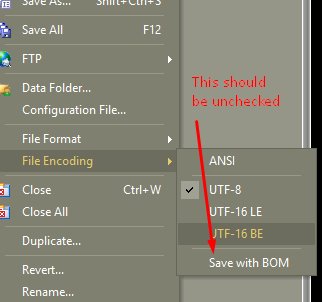
You probably make PHP syntax error, like attached image. Please check this out.

If this is not issue, then: http://iwinter.com.hr/support/?p=7003
BOM also can cause this issue, you should save PHP files without BOM: https://en.wikipedia.org/wiki/Byte_order_mark