Category Archives: Real estate agency portal

How to move the portal script to another host / server?

First you should buy another hosting package for your website, my suggestion where everything is tested and works nice:

a2_hosting_logo

  1. Copy all files and export-import database via phpMyAdmin
  2. Manually configure database details in file application\config\production\database.php
  3. Check configuration file application\config\config.php, specially line 29 and line 41, sometimes you need change .htaccess file because of removing index.php or customizations
  4. Change codecanyon_username and purchase_code in file: application\config\cms_config.php with new one (one purchase code is for one installation only)

Possible ssues after move (blank screen or similar):

  • Hard-coded website domain in application\config\config.php : http://iwinter.com.hr/support/?p=64
  • Wrong quotes in application\config\production\database.php or other config file
  • Different PHP version on new server (Best will be 5.6)
  • mysql db driver not supported, you should try with mysqli, just replace in database config file or select when installing

Quote issue example:

quote_issue

You can’t login after moving issues:

Script using advanced hashing methods to protect passwords saved in database, if your server doesn’t support same as localhost, then login will not work on any account.

In that case you should register new account, and manually define it as admin to login as admin, for this you should:

Login to your Cpanel->PHPMyAdmin->Open database table users and change type of added user to ADMIN:

user_login_issue


How to add / edit or delete the menu tabs on map ? i.e Sale , Rent and both ?

Login to administration->Real Estates->Fields->Edit ‘Purpose’->On all langauges remove wanted values, for example “sale” and “rent and sale” but one should stay or you can expect issues!

If you want just hide it, this can be done via css file templates\bootstrap2-responsive\assets\css\styles.css, add:

ul#search_option_4 li{
    display:none;
}

ul#search_option_4 li.list-property-button
{
    display:inline;
}

If you want to hide “All” in standard real estate bootstrap2-responsive template:

Screenshot_1

SEO, How to change URL / URI from ‘property’->’listing’?

Add

$config['listing_uri'] = 'listing';

to cms_config.php

If you want something else like ‘property’->’firma’, then you need additional:

In ‘application\config\routes.php’

After:

$route['listing/(:num)/(:any)/(:any)'] = "property/$1/$2/$3";
$route['listing/(:num)/(:any)'] = "property/$1/$2";

Add also:

$route['firma/(:num)/(:any)/(:any)'] = "property/$1/$2/$3";
$route['firma/(:num)/(:any)'] = "property/$1/$2";

How to add new badget, for example ‘hot’ or new icon?

Probably when you translating badget, you translate also this field values, but this field values is related to filenames of badget icons so you should also add new badget icon image or leave english version.

To leave english version:

Login to admin->Estates->Fields or Options->Edit badget->Change values of each language to:  empty,new,sold,action

To add new version for your language:
Add option value for option ‘icon’ for example ‘hot’ (please use only english lowercase characters without spaces/dots etc. for this value) to all languages and add image in badgets folder ‘templates\bootstrap2-responsive\assets\img\badgets’, hot.png

To add icon for specific option like amenities etc.:

Or for icons ‘templates\bootstrap2-responsive\assets\img\icons\option_id’ folder, for example 23.png where 23 is option_id

Google map marker icons can be found in: ‘templates\bootstrap2-responsive\assets\img\markers’


I translate everything, but search doesn’t work, parameters like {option_1} is displayed etc…

PDF file with screenshots: http://map-kiosk.com/codecanyon/translate_instructions.pdf

Looks that you forget to translate something, please check in that order:

  1. Login to admin
  2. Pages->Edit every page->click on tab “your_language” and translate all values
  3. Real Estates->Fields->Edit every Field->click on tab “your_language” and translate all values
    *hint: After changes you should edit->save again all your properties, specially for purpose field!
    Don’t translate marker and badget values, just copy-paste
  4. Real Estates->Manage->Edit every property->click on tab “your_language” and translate all values

Additionaly if some base translation missing on frontend:

You should translate this via administration for your language:

Admin->Settings->Languages->Translate files for wanted language->frontend_template_lang.php->translate missing fields

Example video: http://geniuscript.com/support-videos/change-text.mp4

If some words are missing, you can add it in file:
templates\{template_name}\language\english\frontend_template_lang.php

* {template_name} is your template, usually bootstrap2-responsive, realocation, …

*Hint: You can also use auto translation feature (button on top) using Google or MyMemory API
* Marker and badget field should not be translated, detailed guide: http://iwinter.com.hr/support/?p=52
* “Rent” word translation should be same in purpose field and frontend_template_lang.php to work properly, in other case you will not see fromdate-todate on property preview page.

Also can be translated manually via file:
templates\{template_name}\language\{wanted_language}\frontend_template_lang.php

If you want to translate Admin interface:

Admin->Settings->Languages->Translate files->Translate min. all fields in backend_base_lang.php

*Hint: You can also use auto translation feature (button on top) using Google or MyMemory API

Also can be translated manually via file:
application\language\{wanted_language}\backend_base_lang.php

Admin login page:

On admin login page, we don’t know which language to show, because of that it showing default defined in config file “english”, if you want to change this just change langauge in:
application\config\config.php

Writing permission errors on configuration or after, or file uploading/deleting, files translation doesn’t work from admin?

Looks like your server don’t give permission to PHP script for write/delete files on server. Solution is to chmod 755 in following files/folders:

/templates/{your-template}/assets/cache and all files inside
/files/thumbnail and all files inside
/files/captcha and all files inside
/files and all files inside
/application/config/cms_config.php
/application/config/production/database.php
/application/language and all files/folders inside
/system/language and all files/folders inside
/templates/bootstrap2-responsive/language and all files/folders inside
/templates/bootstrap2/language and all files/folders inside
/application/logs and all files/folders inside
/sitemap.xml

If doesn’t help, you can try with chmod 777

Solution to hide amenities in Frontend Property page:

  1. Create new option with type category and name ‘hidden amenities’
  2. General amenities that you want to hide just replace/move to this category ‘hidden amenities’. And it will not be visible on Frontend property page.

*Please don’t hide all amenities, min. one must stay there ;-) If you want to hide all then you need to change template file (just remove amenities section from template file).
Begginer step-by-step instructions if you have cpanel on hosting, to create database:

  1. Open Cpanel -> “MySQL databases”
  2. Create New Database, enter name and click “Create”
  3. Add New User, enter username/password and click “Create user”
  4. Add User To Database, select created database and user and click “Add”
  5. Check for “ALL PRIVILEGES” and click “Make Changes”
  6. Open Cpanel -> “phpMyAdmin” -> Click on your database
  7. Click on operations, select Collation “utf8_unicode_ci” and click “go”
  8. Now enter this database data to configurator, something like “cpanelusername_databasename”, “cpanelusername_databaseusername”, “password” entered

How to lock google maps in one specific fixed location ?

By default map center is calculated based on center of all properties available on map.

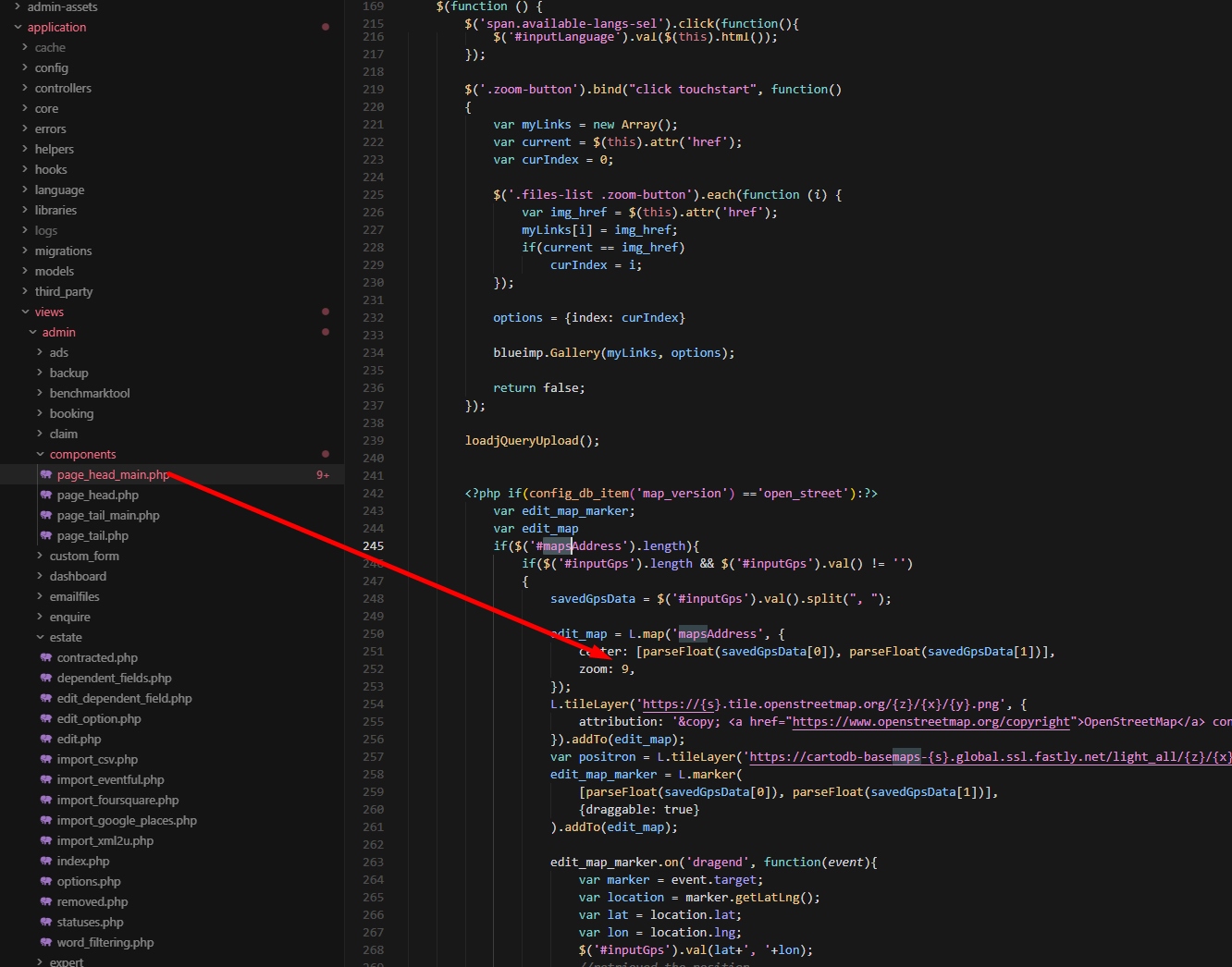
You can also change zoom, this way: http://iwinter.com.hr/support/?p=166

If you want fixed location based on address:

Admin->Settings->Company contact->Check “Use as map center”->Save

If you want fixed location with additional configuration, you can do following:

If you want lock map to specify location, in ‘application/config/cms_config.php’ add line

$config['custom_map_center'] = '27.175015, 78.042155';

Where numbers represents GPS coordinates.

From new script version config can be also configured in template config file:

templates\{your-template}\config\template_config.php

Godaddy and simmilar hosting problems like “No input file specified.” or unexplained redirections problem.

Improved godaddy configuration instructions:

Go to your godaddy account file manager –> WebRoot directory –> Create php5.ini if it does not exist and place following line: cgi.fix_pathinfo = 1 and remove other lines if exists

Now you need to restart your Web Process: Log in to your Account Manager. Click Web Hosting. Next to the hosting account you want to use, click Manage. In the Stats & Monitors section, click System Processes.

In the list on the left, click the process you want to view or click All Processes to view all processes at once. To end a process, click the corresponding end button on the toolbar. Usual just click “End all”.

If you still have issue then configure specific settings in “application/config/config.php”, for me this works:

$config['base_url']    = 'http://example.com/';
$config['uri_protocol']    = 'PATH_INFO';

Or you can try old techniques (not suggested, above solution is much better):

  1. In file “application/config/config.php”
    On line 42, change from:

    $config['index_page'] = 'index.php';

    to

    $config['index_page'] = 'index.php?';
  2. If problem still exists, then On line 60, change from:
    $config['uri_protocol'] = 'AUTO';

    to

    $config['uri_protocol'] = 'QUERY_STRING';

CodeIgniter guide: https://github.com/EllisLab/CodeIgniter/wiki/Godaddy-Installation-Tips

Regarding hosting providers, my scripts are tested on:

a2_hosting_logo

And my suggestion if you decide to purchase by other hosting provider, please save your money/time and don’t buy from godaddy, goddady is good for domains but not for hosting because of many configuration limitations!

How to change currency?

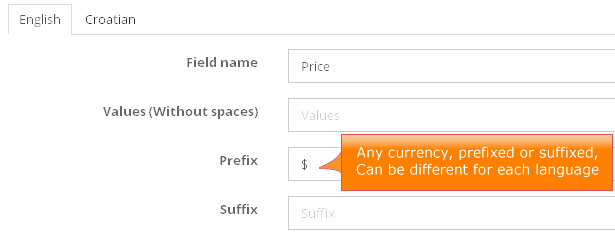
In this script you can have different currency for different languages, can be prefixed or suffixed how you want…

Listing currency instructions if you using real estate version:
Login to Admin->Real estates->Fields->Price->Edit->Change Suffix/Prefix for wanted language

Listing currency instructions if you using classified version:
Login to Admin->Listings->Fields->Price->Edit->Change Suffix/Prefix for wanted language

So based on different scripts, “Listings” may be Locations, Vehicles, Cars etc, but path is same

currency-prefixed-sufixed

NOTE: Here you can also enter some special characters, like example for INDIAN RUPEE SIGN, ₹

You can check here to find your code:
http://www.w3schools.com/charsets/ref_utf_currency.asp

NOTE: If you using classified script then you should click on Listings instead of Real estate, If city guide then click on Locations instead of Real estate, example:

Login to Admin->Listings->Fields->Price->Edit->Change Suffix/Prefix for wanted language

PayPal currency instructions:
Login to Admin->Settings->System->Default PayPal currency

currencies

PayPal doesn’t support other currencies, but if you wish you can add it in: application\models\payments_m.php

More about PayPal supported currencies:

https://developer.paypal.com/docs/classic/api/currency_codes/

Rates prices currencies:

Also need to be supported by paypal.

You can change it in admin->settings->languages->Edit->Change currency->save.

After that you should also define rates again with this new currency.